Windows desktop app · Zoom, Teams, Meet, OBS · Free forever
They see you. You see the script.
There are two bad ways to read on a call. Notes on a second monitor turn your eyes sideways every few seconds and read to everyone as distracted. Or you squeeze a prompter into a two-inch strip under the lens, which technically works and is miserable to read from. The virtual camera removes the compromise.
Free forever No credit card No watermarks
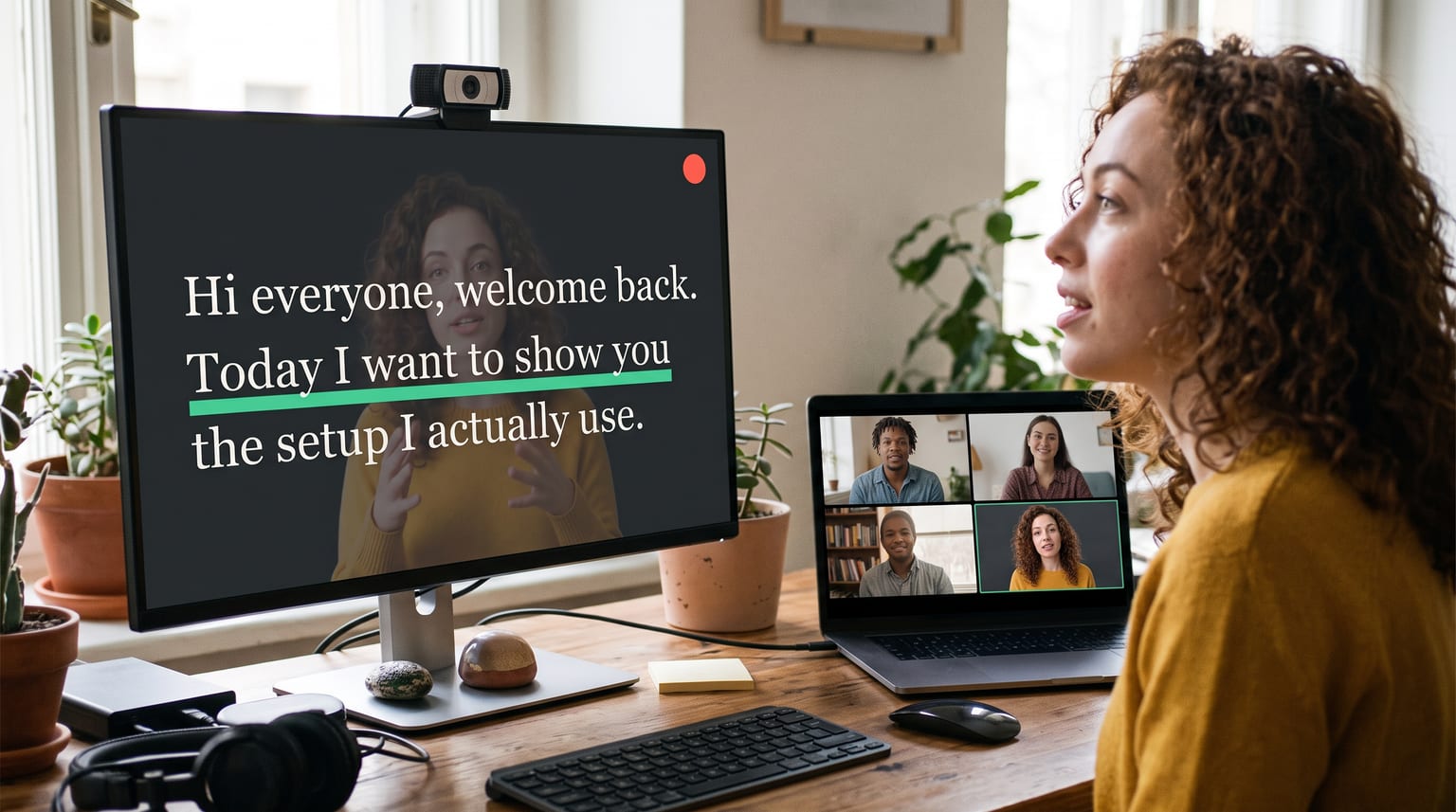
Full screen for you, a clean feed for them — from one webcam.
How it works
Turn on the virtual camera in the desktop app
One switch in the device settings. From that moment CameraPrompter is holding your physical webcam. Installing for all users sets it up automatically; a per-user install asks for an administrator approval once.
It republishes a clean copy of your feed
Your video, with no script text on it, offered to the rest of Windows as a camera named "CameraPrompter".
Select "CameraPrompter" as your camera in the call
Zoom, Teams, Meet, and OBS all list it exactly like any other webcam. Pick it in the same dropdown you’d pick your Logitech in.
Read at whatever size you like
Go full screen with your feed behind the words, or tuck the script into a small box on the edge nearest the lens. The call is unaffected either way.
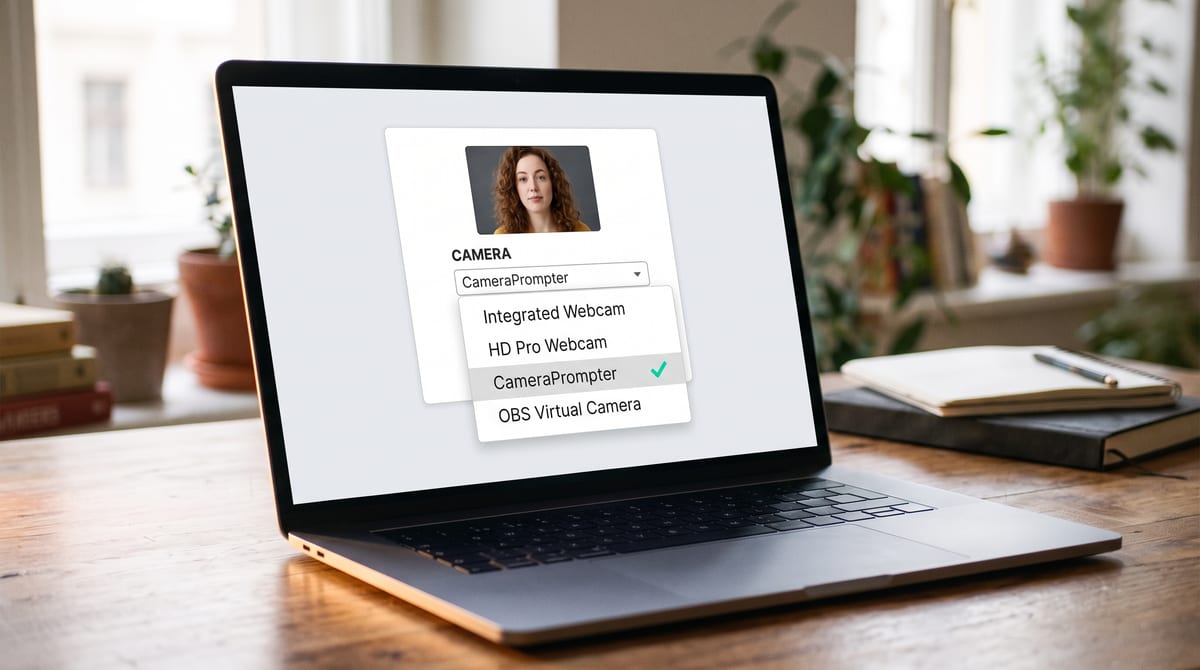
It appears in the camera list like any other webcam. That’s the entire integration.
Why two apps stop fighting over your webcam
The CameraPrompter desktop app for Windows registers a virtual camera. When it’s on, CameraPrompter holds your physical webcam and republishes the clean feed, with no script text, as a camera named “CameraPrompter”. You select that camera inside Zoom, Teams, Meet, or OBS, and your script scrolls over your own face on your side while the call receives only your video.
That matters because Windows lets one application hold a camera at a time. It’s why Zoom shows a black rectangle when another app got there first, and why “read over your camera feed” and “be on a video call” have historically been mutually exclusive.
CameraPrompter resolves it by being the one app that holds the camera and passing the video through. Zoom isn’t talking to your webcam at all. It’s talking to CameraPrompter, which is talking to your webcam. The overlay is composited only on your screen; the feed leaving your machine is the clean one.
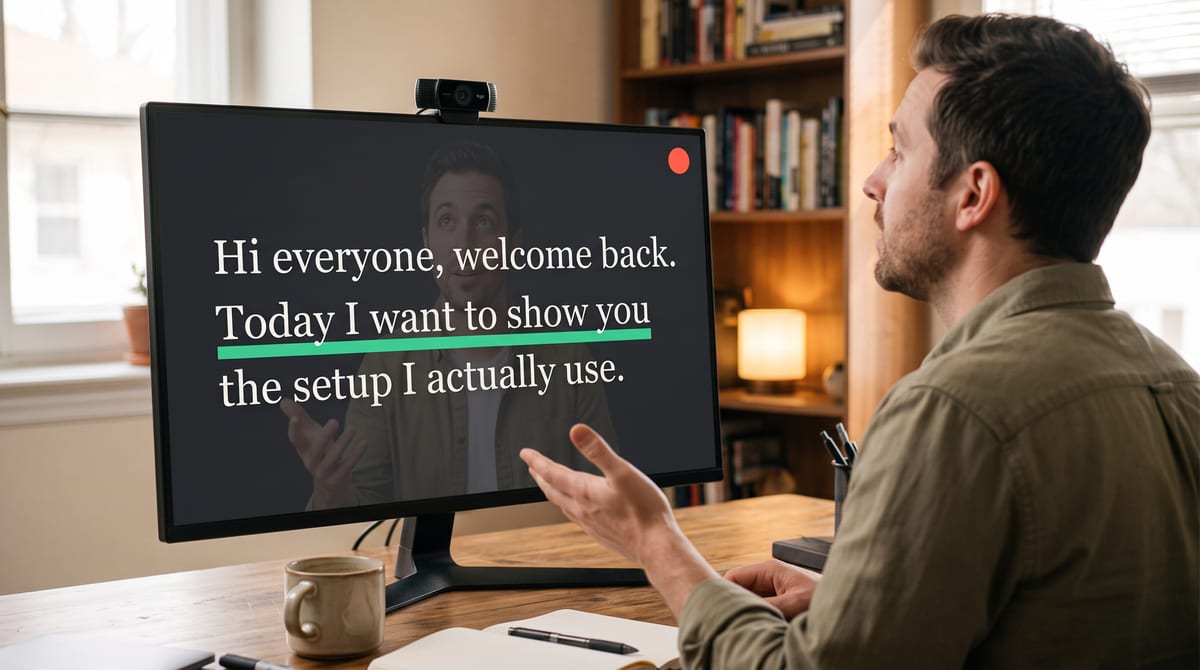
The whole screen, at a size you can actually read, with your face behind it.
Will anyone see my script
No, and there are two independent reasons, which is the reassuring part.
The feed CameraPrompter publishes is rendered separately from what you’re looking at. The script overlay is not on it, so there’s nothing to leak even if you forget you’re reading. And the prompter itself is a window on your desktop, not a screen share. Unless you deliberately share that window, nobody on the call has any way to see it.
The one thing to watch is sharing your entire screen while the prompter is open on it. Share a specific window instead, which is the better habit on calls anyway.
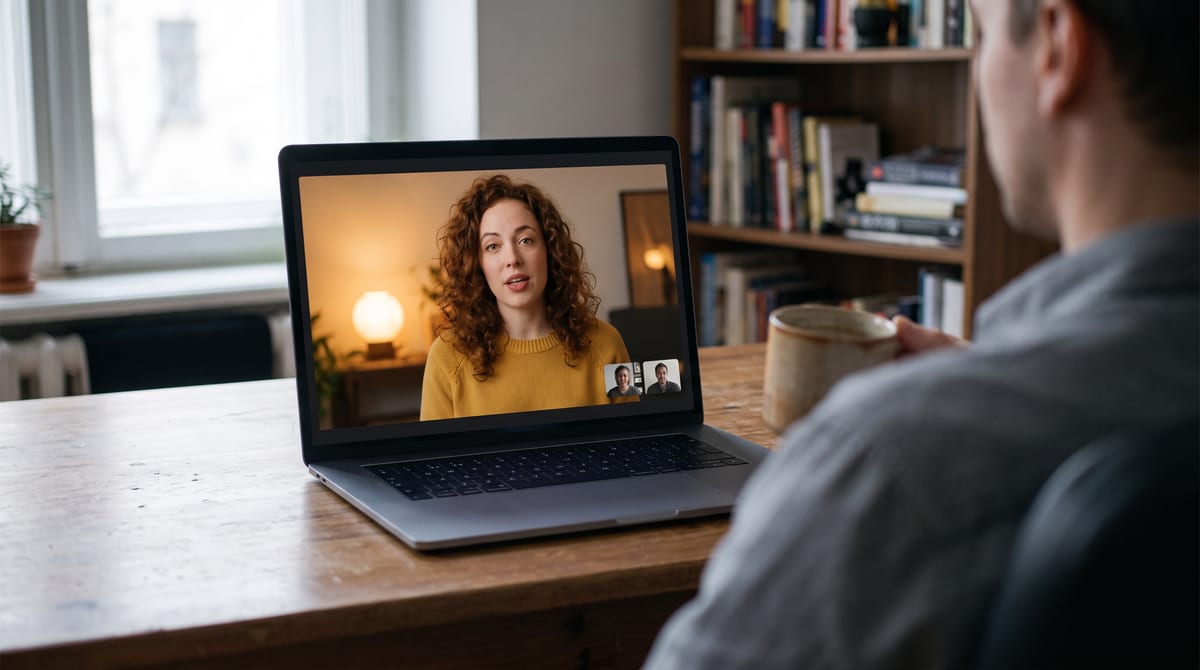
The same moment from their side. No text, no overlay, no tell.
No Windows machine? The setup still works
Worth saying clearly, because the virtual camera is a Windows desktop feature today and plenty of people are reading this on a Mac or a locked-down work laptop.
Without it, you run CameraPrompter in a browser window and park it under the lens, or tuck the script into a small box on the edge where your camera sits. Your eyes stay within a couple of degrees of the camera, which on a video call is indistinguishable from eye contact. This is the setup the teleprompter for Zoom guide walks through, it needs no install at all, and on a corporate laptop with no admin rights it’s often the only option. What you give up is the full-screen luxury and your own face behind the words, not the eye contact.
Anything with a camera dropdown
The virtual camera is a camera, so it goes wherever cameras go.
Zoom.
Pick "CameraPrompter" in Video settings. Nothing is installed into Zoom and there is no plugin to approve.
Microsoft Teams.
Same dropdown, same behaviour. Useful for the all-hands update you’d rather not wing.
Google Meet.
Runs in the browser and still reads the virtual camera, because Windows offers it like any webcam.
OBS.
Select it as a video source and stream or record a clean feed while reading full screen on the same machine.
Webinar platforms.
If it lets you choose a camera, it will find this one. No capture-card loop, no second computer.
Recording tools.
Loom, Riverside, and the rest treat it as an ordinary device, so your notes stay off the recording.
Frequently asked questions
Is there a CameraPrompter plugin for Zoom?
No, and you don’t need one. CameraPrompter installs nothing into Zoom. The Windows desktop app registers a virtual camera that Zoom sees as an ordinary webcam, which is why the same setup works unchanged in Teams, Meet, Webex, and OBS.
How do I read a script on a Zoom call without anyone seeing it?
Turn on the virtual camera in the CameraPrompter desktop app for Windows and select "CameraPrompter" as your camera in Zoom. Your script scrolls over your own video on your screen, and Zoom receives the clean feed without the script. Because the prompter is a normal window and not a screen share, nobody else can see it.
Won’t Zoom and the teleprompter fight over my webcam?
Not with the virtual camera on. Normally only one app can hold a webcam at a time. Here CameraPrompter holds the physical camera and passes the video through to the call, so you get the overlay and Zoom gets your feed at the same time.
Does the virtual camera work on a Mac?
Not today. It’s a feature of the Windows desktop app. On macOS, run the prompter in a browser window positioned under your camera, or use the script-positioning box to put the words on the edge nearest the lens.
Does it work with Microsoft Teams, Google Meet, and OBS?
Yes. All of them read cameras the same way, so "CameraPrompter" appears in the camera dropdown in each and behaves like any other webcam.
Does the virtual camera change my video quality or framing?
The virtual camera publishes a fixed 1280x720 frame at 16:9, taken from your camera’s picture and centre-cropped to fit. Framing you set in the prompter preview - a vertical crop, a zoom, a nudge - changes only what you see on your own screen, not what the call receives. So you can crop the preview however you like for a recording without changing how you look on the call.
Does the virtual camera cost extra?
No. The virtual camera is part of the Windows desktop app and is not a paid feature. Pro, at $12.99 a year, adds voice-activated scrolling and in-browser recording. Every account gets 7 days of Pro free with no credit card.
Where do I get the desktop app?
From the download page on cameraprompter.app: a single installer for 64-bit Windows 10 and 11. Installing for all users registers the virtual camera automatically; on a per-user install, click "Set up virtual camera" inside the app once and approve the administrator prompt. It’s the same product and the same account as the browser version, and your scripts sync between them.
Full screen for you. Just your face for them.
Free forever, 7 days of Pro free on signup. Your next call, eyes up.
Start Prompting FreeNo credit card. Setup takes about 60 seconds.