Any camera · USB or HDMI capture · Free forever
Read your script over the shot you’re actually recording.
The nice camera solved your image quality. It also took away the one thing your laptop webcam gave you for free, which is seeing yourself. Most prompter apps hand that back as a phone clamped somewhere near the lens, showing text and nothing else — so you read blind, and you find out about the shadow or the drifted frame when you sit down to edit.
Free forever No credit card No watermarks
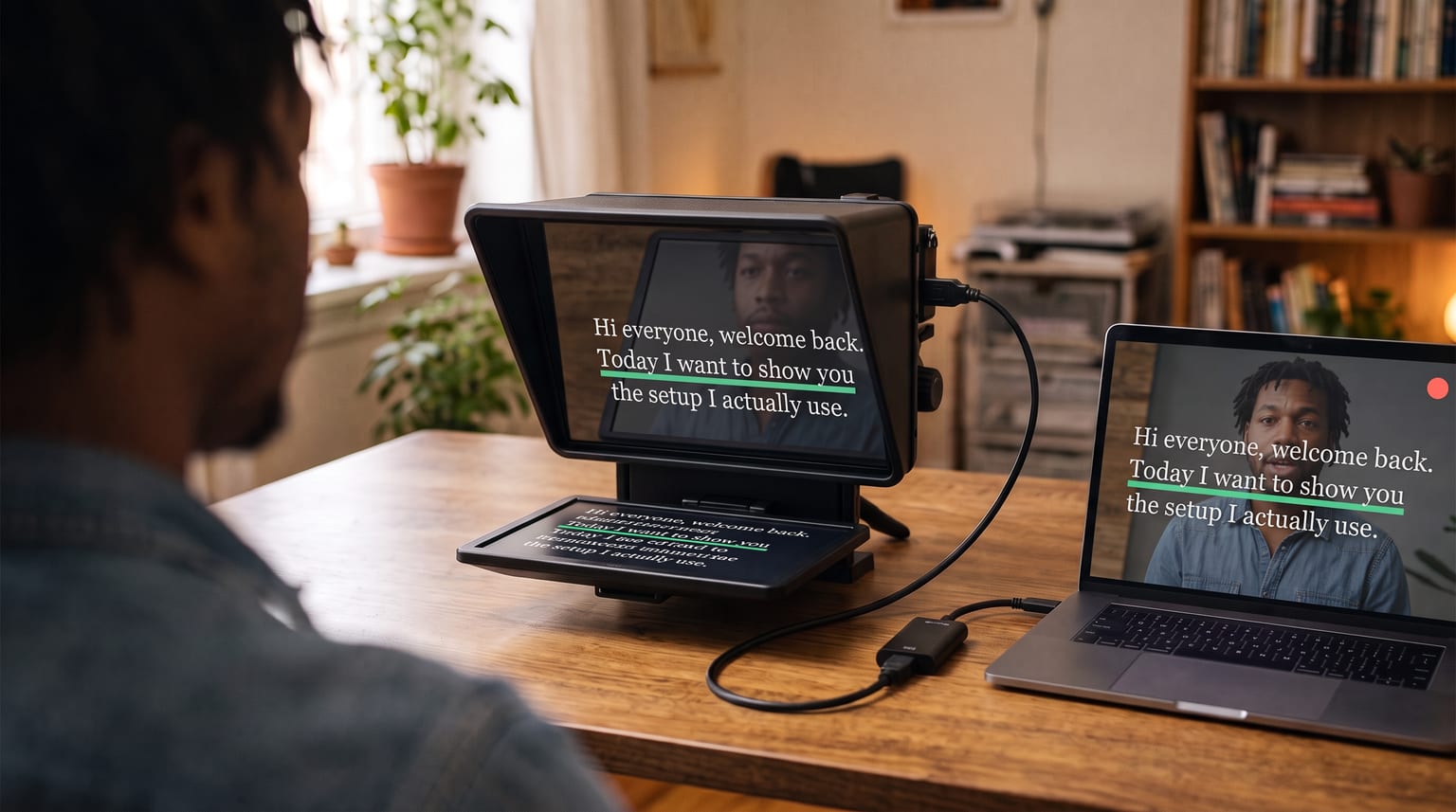
Your camera as the video source — your face sits behind your words.
Your browser sees video devices, not cables
CameraPrompter reads any camera your computer already treats as a webcam. A mirrorless, DSLR, or cinema camera connects one of two ways: USB straight into the machine, if the body has a webcam or USB streaming mode, or HDMI out into a USB capture card. Either way your script scrolls over your own live feed in the browser, so you read the words and watch your framing on the same screen.
The USB route is the one to try first, because it costs nothing. Sony, Canon, Nikon, Fujifilm and Panasonic all ship this on current bodies, and some want a small utility from the manufacturer installed the first time. Plug in, and the camera turns up in the device list next to your built-in webcam.
The HDMI half is worth being plain about, because it trips people up. A browser cannot read an HDMI cable. The capture card is what turns the HDMI signal into a USB video device, and that device is what CameraPrompter sees. Once the card is plugged in, your cinema camera is, as far as the software is concerned, a webcam.
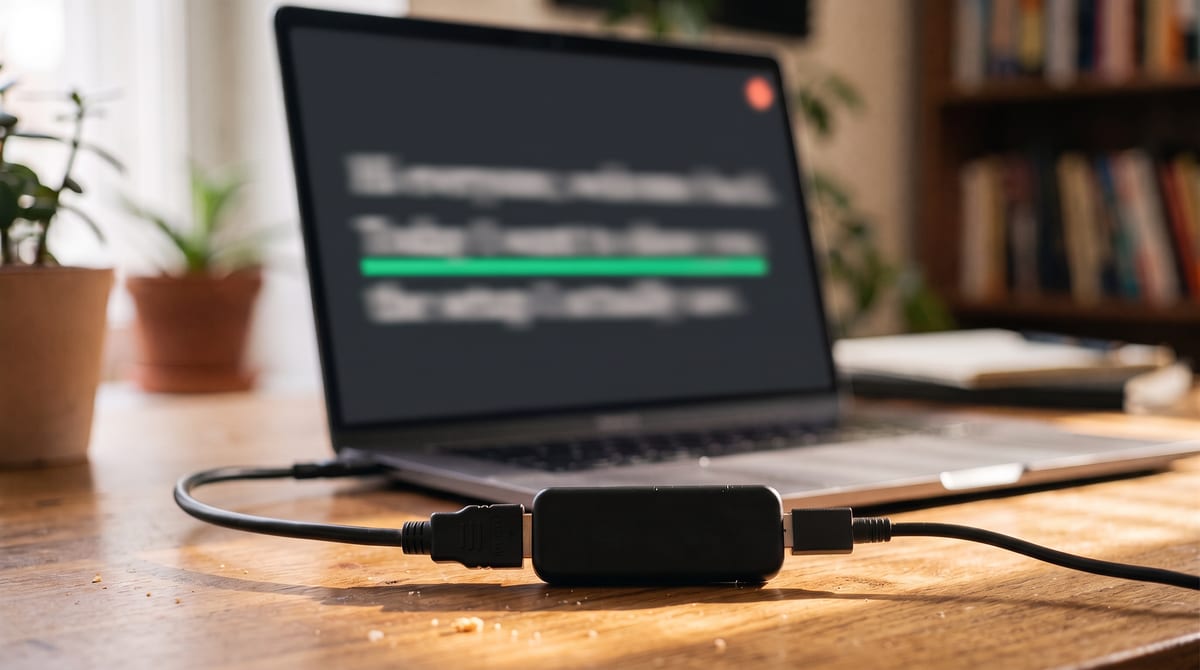
The little box that does the translating: HDMI in one side, USB video device out the other.
Setting it up
Connect the camera and turn it on first
Whether it’s the USB cable or the capture card, the video device only appears once the camera is awake and outputting. Plug in, power on, then open the prompter.
Open cameraprompter.app and allow camera access
Device names only appear after you grant permission, which is a browser rule rather than ours. Before that you’ll see a generic list.
Pick your camera from the device list
Your capture card or camera shows up by its own name alongside any built-in webcam. CameraPrompter asks each device for 1080p at 30fps and accepts whatever it can actually deliver, so nothing breaks if the card caps lower.
Read
The script scrolls over the feed, the green line marks where you are, and your selection is remembered for next time.
Frame it once, then stop thinking about it
Reading over your own feed is only useful if the feed matches what you’re posting. So the preview crops to 16:9, vertical, 4:3, or square, and you can zoom and nudge the image until the frame is the frame.
Then move the words to the lens. Instead of resizing windows until the text happens to sit near the camera, tuck the script into a small box on whichever edge or corner the camera actually occupies. On a rig where the body sits high on a monitor arm, that’s the top edge. Your gaze lands within a couple of degrees of the lens, and on camera that reads as looking straight at your audience.
If you unplug the camera mid-session, CameraPrompter notices and tells you rather than freezing on a dead frame. If another app is already holding the camera, it says that too, which saves you the usual ten minutes of wondering why the preview is black — and if you need both at once, the Windows app’s virtual camera is the way around it.
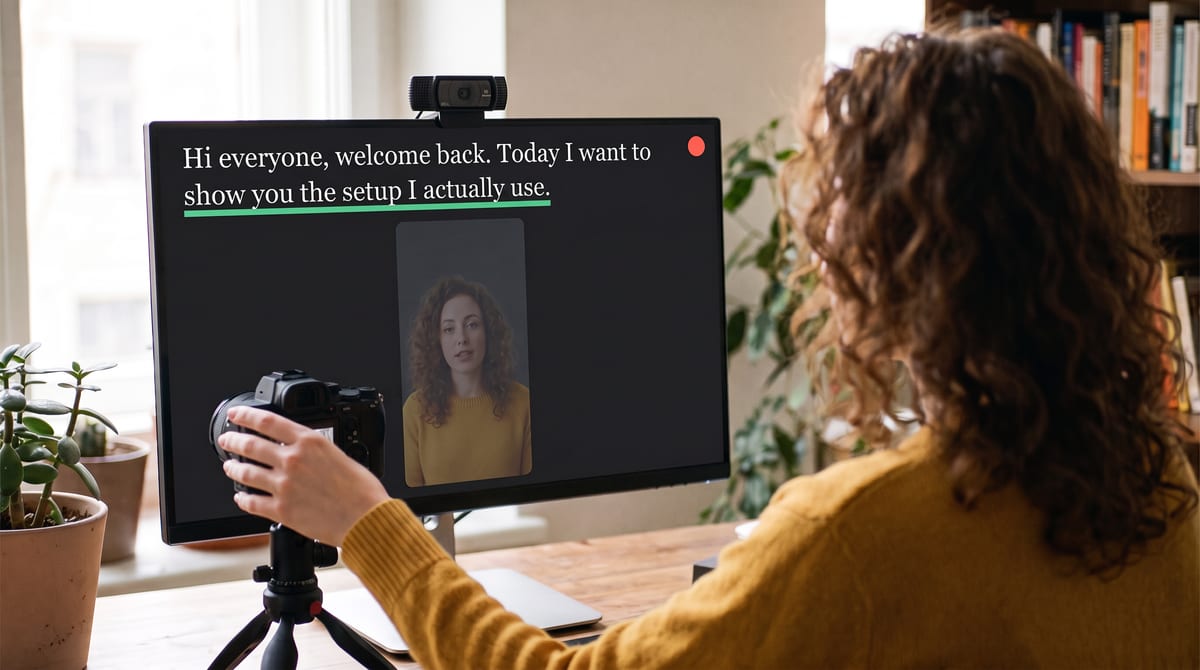
Vertical crop for a short, script tucked under the lens — words and camera nearly touching.
Or put the words on the lens itself
Moving the script to the nearest edge of the screen is the software answer to gaze. The hardware answer is a beam-splitter hood, and if you’ve already spent money on a camera it’s worth knowing how unmysterious these are.
A hood like the Elgato Prompter is a small unit with a display lying flat in its base and a pane of half-silvered glass angled at 45 degrees above it. The display throws your words up onto that glass, which is where you read them. Your camera sits behind the glass and shoots straight through it, so the text never reaches the sensor. You’re not reading near the lens any more. You’re reading at it.
The hood connects over USB-C and shows up as an extra monitor, so you drag a CameraPrompter window onto it, go full screen, and drive the script from your main display. The two halves stack and solve different problems: the capture card gets your camera into the browser, the hood puts your script on the lens axis. There’s a longer walkthrough on running CameraPrompter on a prompter hood.
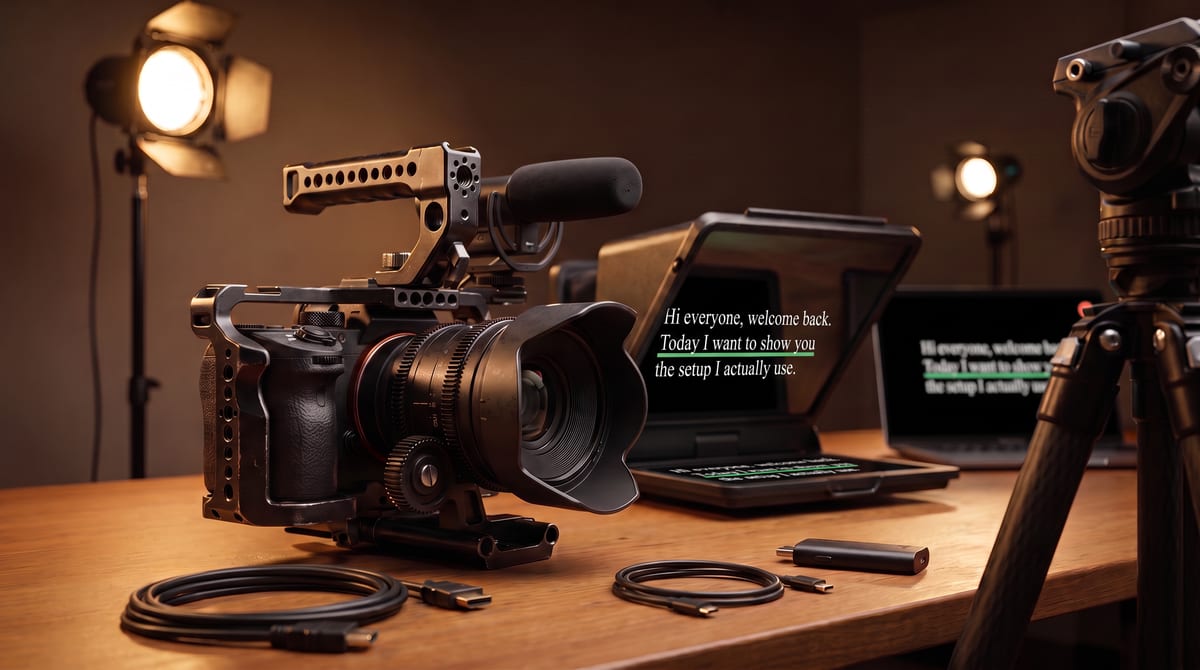
Body, cage, a hood, a card, two cables. None of it needs to be new.
Where the recording lives
Record in the camera. The body writes its own full-quality file to its own card, exactly as it would if the prompter weren’t there. CameraPrompter is purely your prompter and your monitor, and nothing in the browser touches the footage you’ll edit. For anyone who bought a cinema camera specifically for the codec, this is the setup.
Record in the browser. Pro captures the take in the tab itself, from the same feed you’re reading over, with no watermark across your video. Fine for a talking-head take you want to post today. It records the capture feed, though, not the camera’s internal file, so quality follows whatever your card and browser hand over.
You can also do both and keep the browser take as the backup. And if the take looks right but the room still doesn’t, that’s a lighting problem rather than a camera one — two lights fix it for less than the lens cost.
What this does not do
Being straight about the limits, because the alternative is a support email.
It’s a feed, not camera control.
Focus, aperture, ISO, and white balance stay on the camera body. CameraPrompter shows you the result.
Clean output matters.
If your camera sends its own info overlays down the HDMI cable, you’ll see them in the prompter. Turn on clean or display-free HDMI output in the camera menu.
One app holds a camera at a time.
That’s an operating-system rule, not ours. If you’re also on a call or in OBS, the Windows app’s virtual camera is the way around it.
A capture card sets its own ceiling.
Many inexpensive cards top out at 1080p regardless of what the camera can do. Only relevant if you’re recording in the browser.
Frequently asked questions
Can I use a teleprompter with a DSLR or mirrorless camera?
Yes. CameraPrompter uses whatever camera your computer sees as a video device, so a DSLR, mirrorless, or cinema camera works either over USB in webcam mode or through a USB capture card on its HDMI output. The script then scrolls over that camera’s live feed instead of over a laptop webcam.
Do I need a capture card?
Only if your camera has no USB webcam or streaming mode. Sony, Canon, Nikon, Fujifilm and Panasonic all support this on current bodies, sometimes after installing a small utility from the manufacturer. If yours can’t, a USB capture card on the HDMI output does the same job for any camera with a clean HDMI signal.
Does CameraPrompter work with an Elgato Cam Link?
Yes. A Cam Link or any other USB capture card appears as a normal camera, so you select it in the device list like a webcam. The same is true in Pro’s in-browser recorder.
Can I use this with an Elgato Prompter or another beam-splitter hood?
Yes, and the two solve different halves of the problem. The hood is a display: it appears to your computer as an extra monitor, so you drag a CameraPrompter window onto it and read off the angled glass while the camera shoots through it. The capture card is what gets that camera’s picture into the browser in the first place. Run both and you’re reading on the lens axis from a camera the browser can see.
Will my camera’s menus show up over my script?
They will if the camera is sending overlays down the HDMI cable. Every camera that supports it has a clean output or display-off setting in its menus. Turn that on and you get bare video.
Why do I want to see myself while I read?
Because reading is only half the take. With your own feed behind the words you catch the framing drift, the shadow across one side of your face, and the moment you started looking slightly off-lens, while you can still fix it. A text-only prompter hides all of that until the edit.
Is it free with an external camera?
Yes. Camera selection, the overlay, framing controls, script positioning, and the full prompter are on the free plan, with no watermarks. Pro adds voice scroll and in-browser recording for $12.99 a year, and every account starts with 7 days of Pro free without a credit card.
Does this work on a Mac?
Yes, in any modern browser. Camera and capture-card selection is the same on macOS and Windows. The virtual camera, which is a separate feature for calls, is Windows desktop only today.
Your camera, your face, your words.
Free forever, 7 days of Pro free on signup. Plug in and read.
Start Prompting FreeNo credit card. Setup takes about 60 seconds.