Help & Documentation
Everything you need to know
A quick walkthrough of every feature, plus answers to common questions. Can’t find what you need? Email support.
Getting started
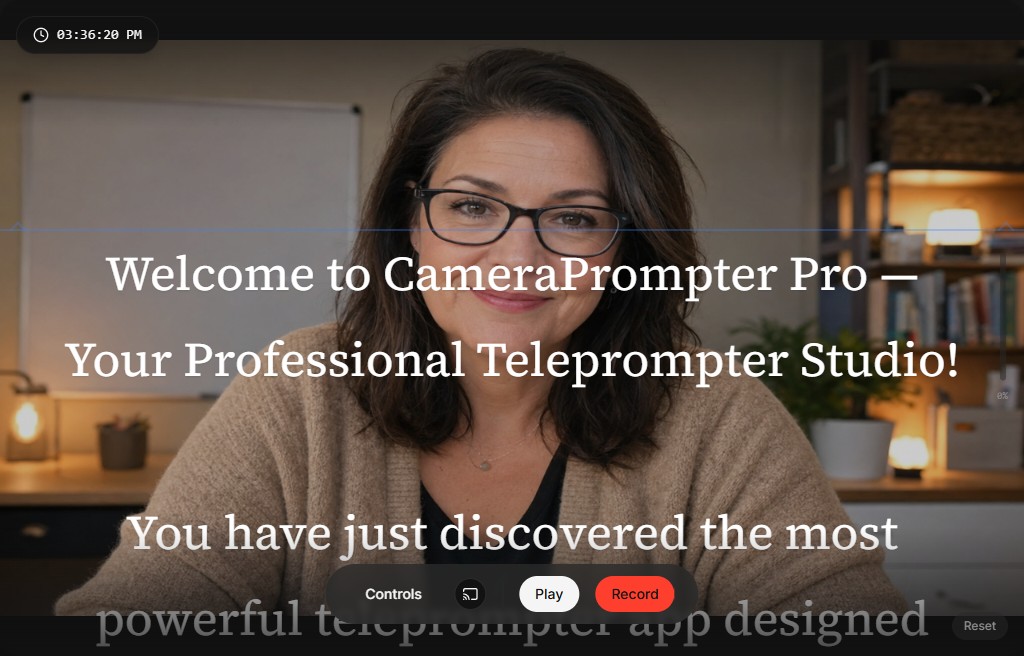
Open the app and enable your camera: find the Camera dropdown under Devices in the control panel, select your webcam, and allow access when your browser prompts you. Your script scrolls over the live feed at low opacity, so you keep eye contact with the lens while you read — line up the eyeline guide with your eyes for the most natural look.
A starter script is already in your library the first time you sign in — open it, or create your own from the Script Library on the left.
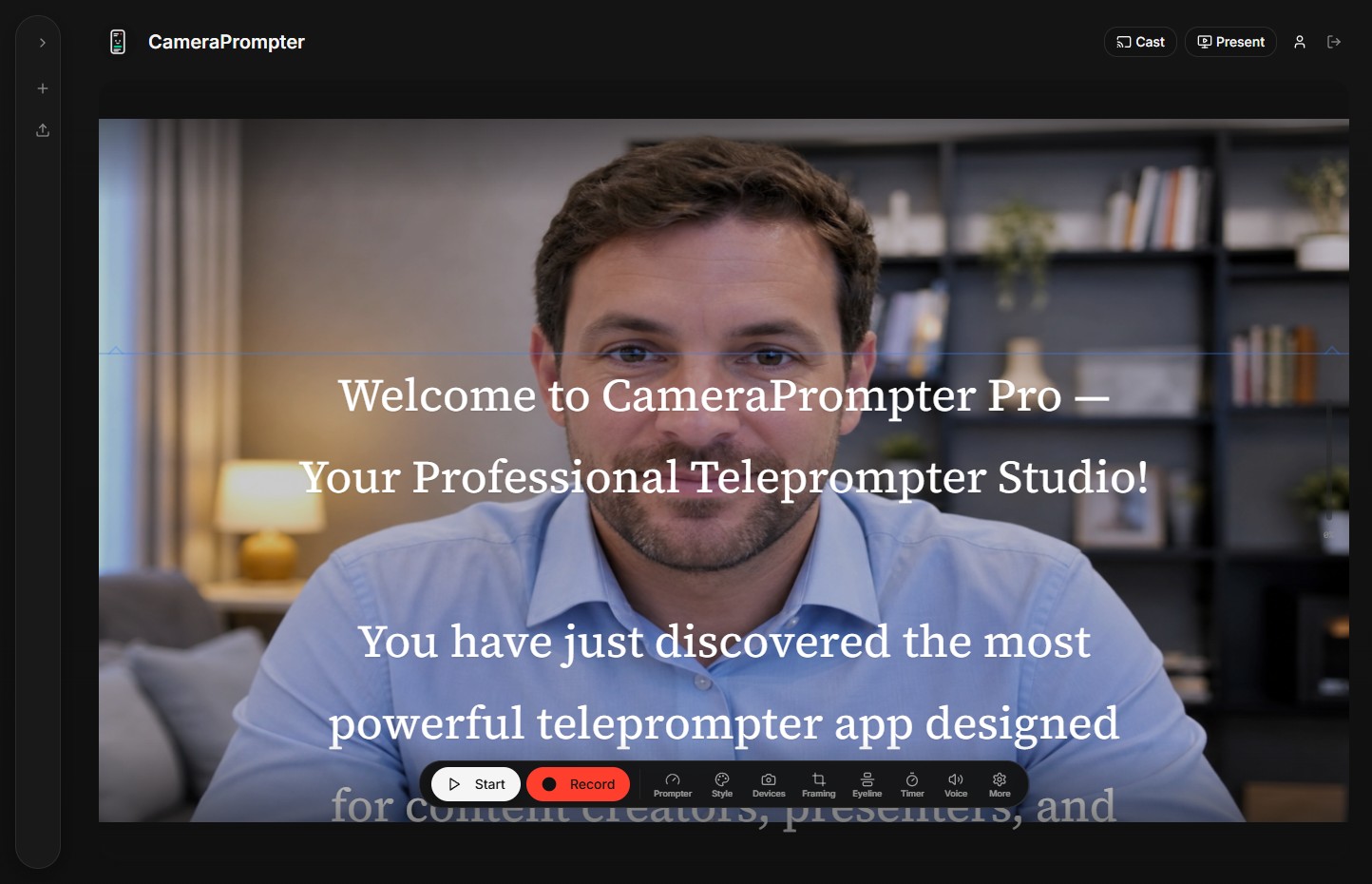
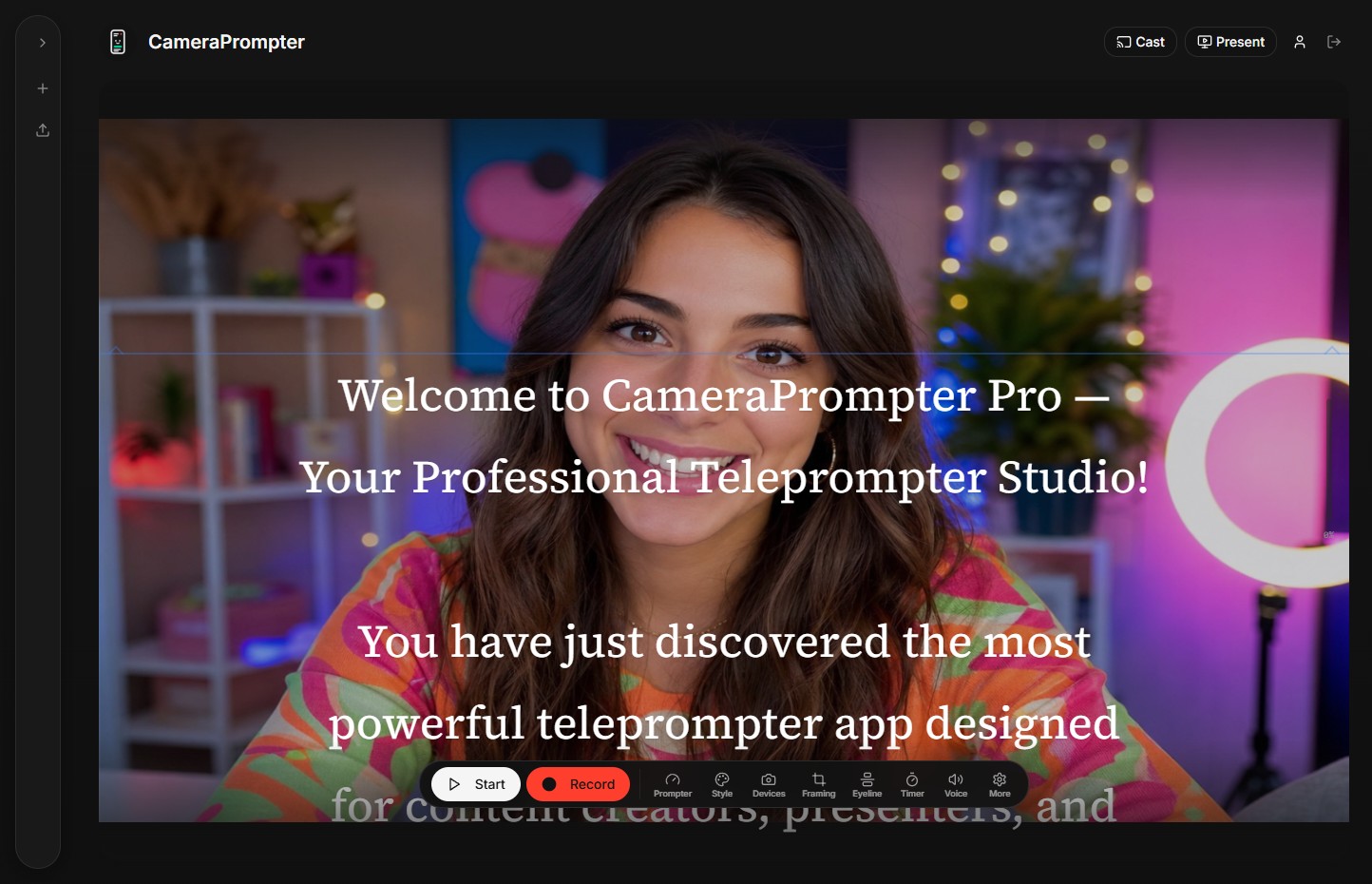
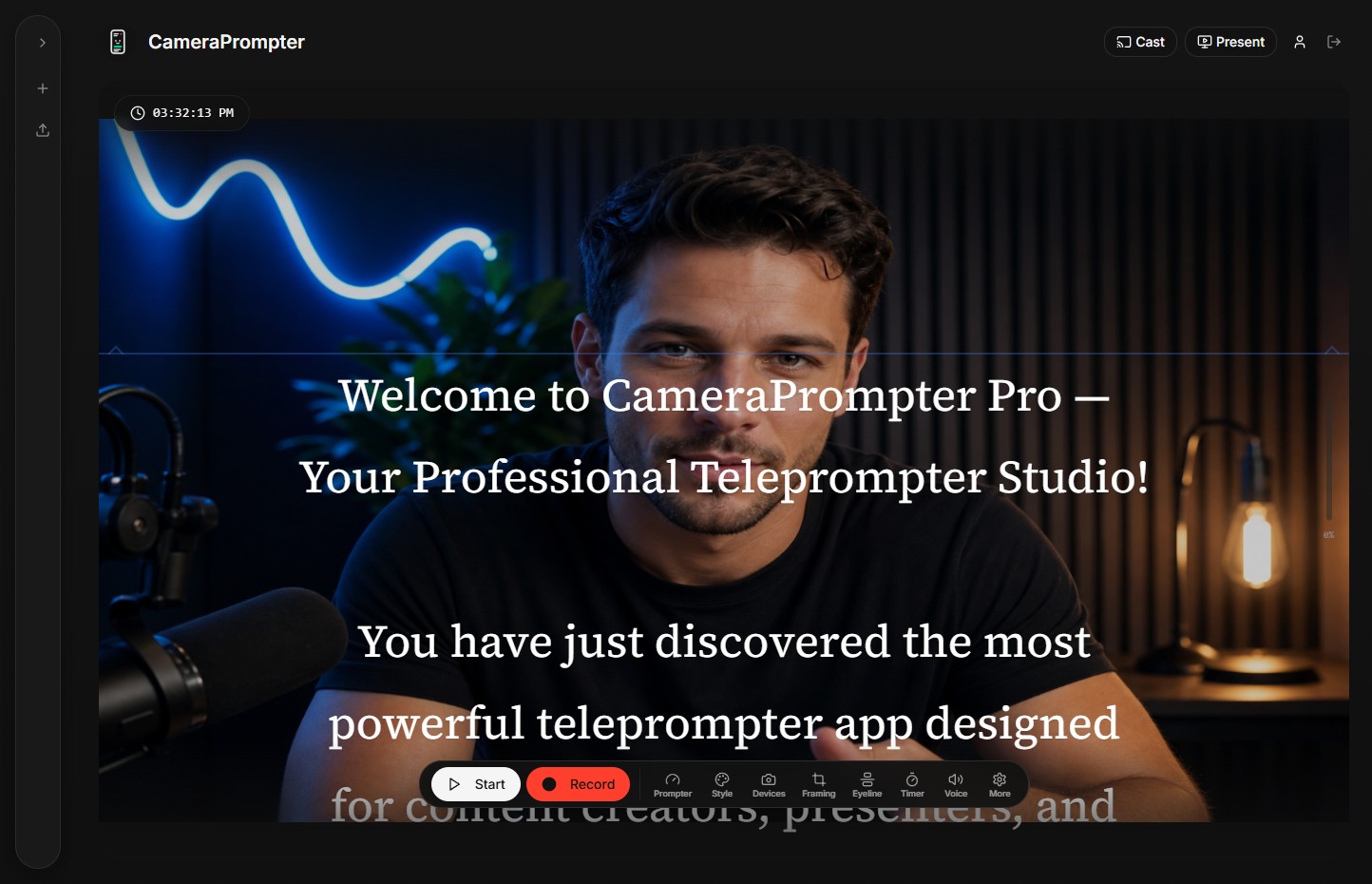
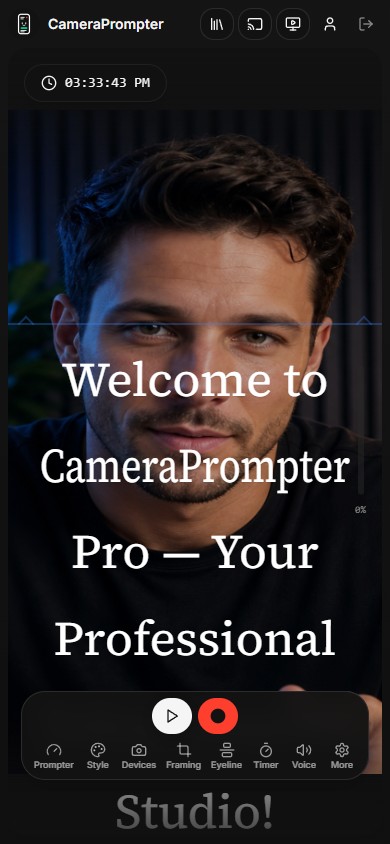
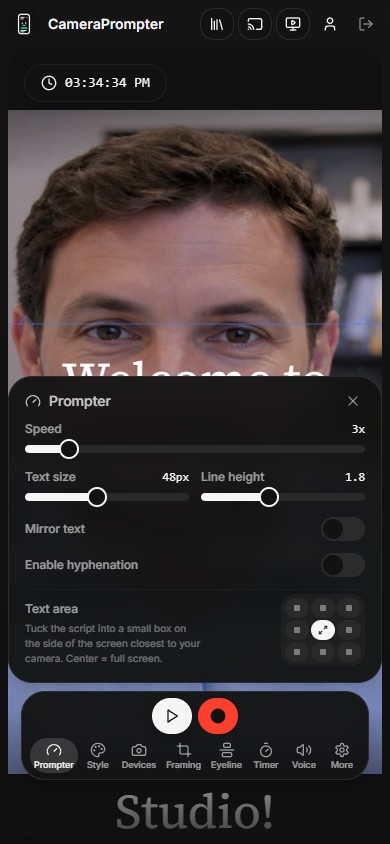
Sales pitches, YouTube videos, podcasts, lectures — the same prompter adapts to whatever you’re recording, on desktop or phone.
Managing your scripts
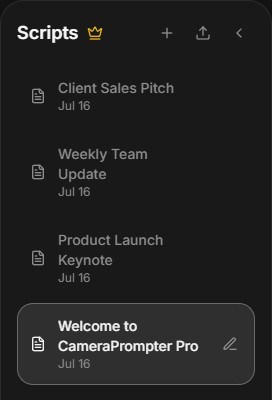
The Script Library on the left keeps every script you write or import. Click New script to start from a blank page, or Upload script to extract text straight from a .docx file. Click any script to load it into the prompter, or use the pencil and trash icons that appear on hover to rename or delete one.
Everything syncs to your account automatically, so the same scripts are waiting for you on the web, desktop app, iOS, and Android. Free accounts can keep up to 5 scripts; Pro removes that limit. Collapse the library with the arrow icon to reclaim screen space while you read.
Customizing the prompter
The dock along the bottom opens a settings panel for every part of the display — click a category to expand it, click again (or the X) to close it. Double-click most sliders to reset them to their default.
Prompter
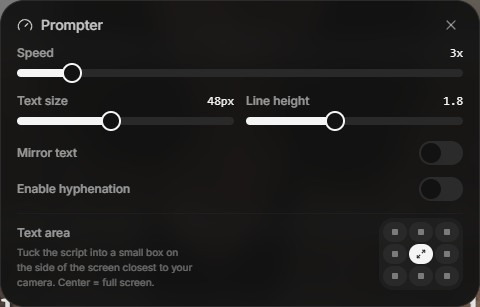
Speed and Text size control how fast and how large your script scrolls; Line height adds breathing room between lines. “Mirror text” flips the script for physical beam-splitter rigs, and “Enable hyphenation” helps long words wrap more naturally. The 3×3 Text area grid tucks the script into a small box near whichever edge is closest to your camera lens — pick the center tile for full screen.
Style
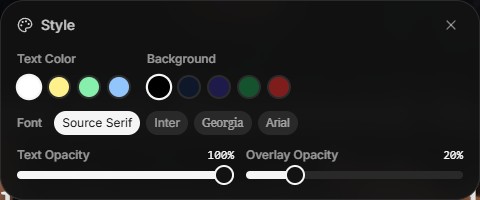
Pick a Text Color and Background swatch, and choose a Font (Source Serif, Inter, Georgia, or Arial). Text Opacity fades the script itself; Overlay Opacity fades the background panel behind it — drop it low (as in these screenshots) to see your camera feed clearly through the text.
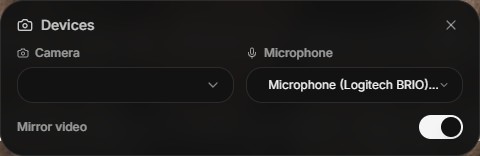
Devices
Switch Camera or Microphone anytime from the dropdowns (a live level meter confirms your mic is picking up sound), and toggle Mirror video to see yourself the way your audience will — independent of text mirroring. On the Windows desktop app, this panel also has a virtual camera switch for Zoom and Teams.
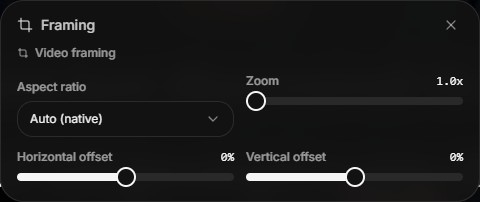
Framing
Aspect ratio crops your video feed to Auto (native), 16:9, 9:16 (great for phone/vertical recording), 4:3, or 1:1. Zoom pushes in on the feed, and the Horizontal/Vertical offset sliders re-center the crop — handy for framing yourself perfectly once you’ve zoomed in.
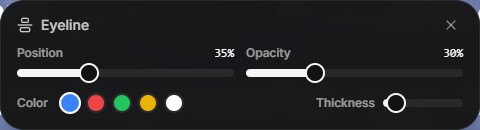
Eyeline
The horizontal guide shows exactly where to look. Position moves it up or down the screen — line it up with your eyes in the video preview for the most natural eye contact. Opacity, Color, and Thickness keep it visible to you without being distracting on camera.
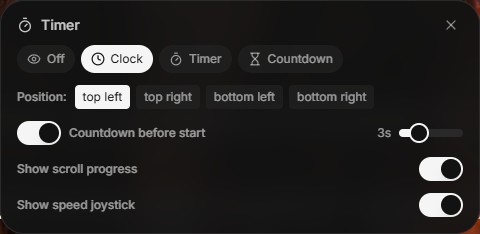
Timer
Choose Clock (the current time), Timer (a stopwatch counting up), or Countdown (counts down to zero), and drop it in any screen corner. Countdown before start adds a few seconds to compose yourself before scrolling begins; Show scroll progress and Show speed joystick add an on-screen progress bar and a draggable speed control.
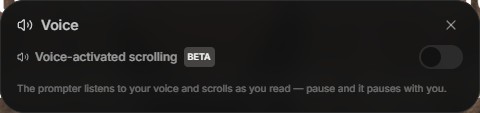
Voice (Pro, beta)
Turn on Voice-activated scrolling and the prompter listens to you read, scrolling to match your pace and pausing when you stop talking — no more racing to keep up with a fixed speed. Sensitivity tunes how quickly it reacts to your voice.
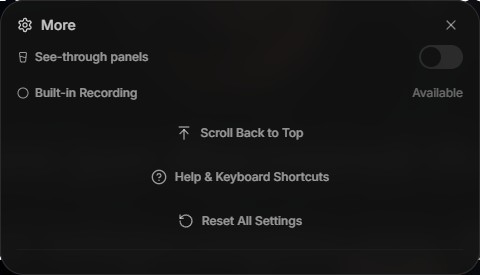
More
See-through panels makes the settings dock itself translucent while you adjust it. From here you can also jump back to Scroll Back to Top, open Help & Keyboard Shortcuts, or Reset All Settings to their defaults, plus see your subscription status.
Presentation mode
Click Present for a distraction-free, full-screen view — the control panel and script library fade away, leaving just you and your script. Press Esc to return anytime.
Keyboard shortcuts
| Space | Play or pause scrolling |
| F | Toggle fullscreen |
| P | Toggle presentation mode |
| ↑ | Increase scroll speed |
| ↓ | Decrease scroll speed |
| Home | Start scrolling |
| End | Stop scrolling |
| Esc | Exit presentation mode |
| ? | View all shortcuts |
Recording (Pro)
Click Record to capture video and audio right in your browser — no uploads, no third-party services. Pause and resume anytime. When you stop, review the duration and file size, then Download (or discard) the recording to your device.
Casting to a TV
Click Cast in the header to send a clean, text-only prompter to a Chromecast or AirPlay TV (or pop it out into its own window) while your controls and camera preview stay on your device.
Install as an app
For the best experience, install CameraPrompter on your device. On iOS, tap Share then “Add to Home Screen”; on Android and desktop browsers, look for the install prompt. Prefer a native app? Download the Windows desktop app, which adds a virtual camera for Zoom, Teams, and OBS.